

AWS - Waste Reclamation Report Configuration
Requirements:
- AWS PowerShell Module installed on the Commander Server
- AWS Account must be added with IAM Credentials(not Assume Role)
- IAM Credential requires read permission on the AWS Account as a minimum.
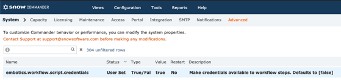
- In Snow Commander the Advanced Property “embotics.workflow.script.credentials” must be set to true.
- In some cases the Execution Policy on the Commander Server must be set to “Unrestricted”
Steps:
- On the Commander Server if you don’t have the AWS PowerShell module installed it can be easily installed by running the following in PowerShell:
Install-Module -Name AWSPowerShell.NetCore -AllowClobber -Forceif you receive a Security error you may need to run this and try again:
[Net.ServicePointManager]::SecurityProtocol = [Net.SecurityProtocolType]::Tls12
- Download the Workflow from https://github.com/Embotics/Workflows .
- In the Commander Admin UI navigate to “Configuration> System> Advanced”
- Search for “embotics.workflow.script.credentials” and set the value to true.
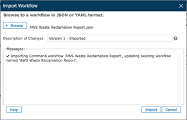
- Navigate to “Configuration > Command Workflows” in the Commander Admin UI. In the lower right-hand corner of the workflow list grid you will see an import button. Select and Import the “AWS_Waste_Reclamation_Report.json” downloaded in Step [2].
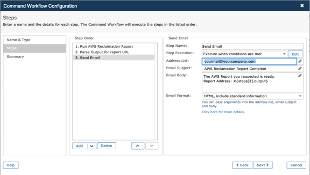
- With the Workflow installed, select it and edit workflow Step # 3. Set the recipient E-mail address. That will receive a Hyperlink when the report is complete.
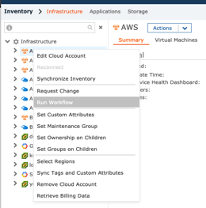
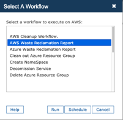
- Now run the workflow against a cloud account to generate the Report. In Views Select an AWS Cloud account in inventory and then right-click and select Run Workflow from the account-Menu.
- Select “AWS Waste Reclamation Report” From the Workflow List.
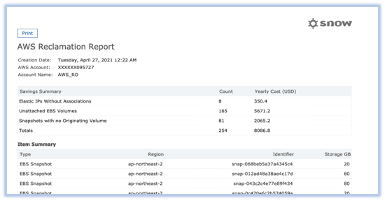
- Once Complete, the Recipient will receive a link to the Report. It’s HTML Base and if the report is run again, it will update the existing. If Required Print the Report for Later use.
Troubleshooting: If the Report Runs but it’s, Empty or the workflow fails. Make sure the PowerShell Module is Installed, Download the Commander diagnostic Package from “Help > Support” latest Entries are at the bottom of the file.
Was this helpful?



