Snow Software Commander ships with a diagnostics utility that makes it easy for you to provide information about your deployment to Snow Software Technical Support team.
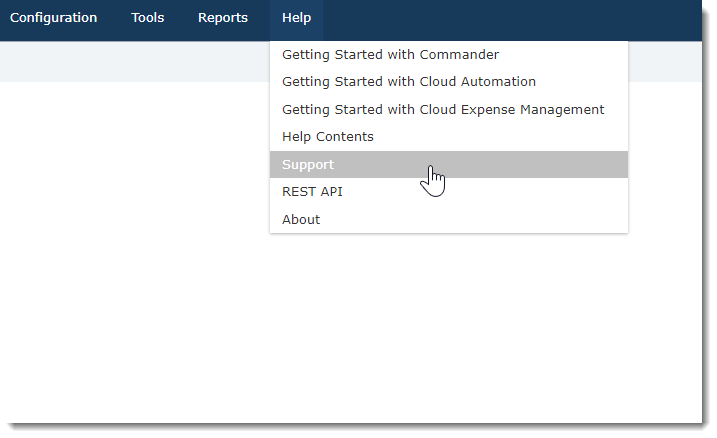
- Login to Commander and choose Support under the Help menu.
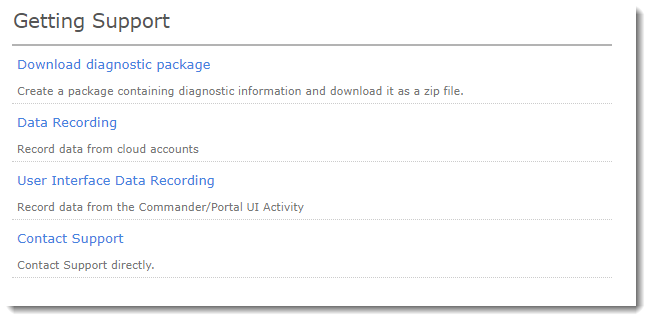
- Click Download diagnostic package.
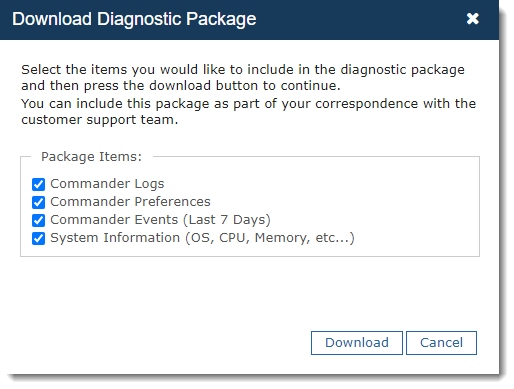
- Check all 4 checkboxes and click Download.
- Locate the downloaded zip file (vCommander_Diagnostic.zip) and attach it with your email response or ticket submission using the Snow Globe Community Portal .
Note: If you are unable to login to the admin portal you can zip up the logs files from these locations on the Commander application server (assuming default installation path):
- <Install Directory>\Program Files\Embotics\Commander\tomcat\logs
- <Install Directory>\Program Files\Embotics\Commander\identityservice\logs
- <Install Directory>\Program Files\Embotics\Commander\currency-service\logs
- <Install Directory>\Program Files\Embotics\Commander\terraform-service\logs
Best Practice
When submitting a diagnostics package please also advise the support team of the timestamp to examine for when the issue of concern occurred. An easy way to do this is to reproduce the issue right before downloading the diagnostics package, and letting support know this was done.
If the issue of concern is one you suspect might be related to connecting to the database or cloud accounts, you can also restart the application server or Commander Windows services, so that these issues will be more obvious in the logging of the system's start up routines.